

Approve your team’s hours in a few taps
With the Foreman Screen, the foreman sees their team, projects and tasks, clocks in the whole crew at once and approves hours in bulk, from their phone.
What changes
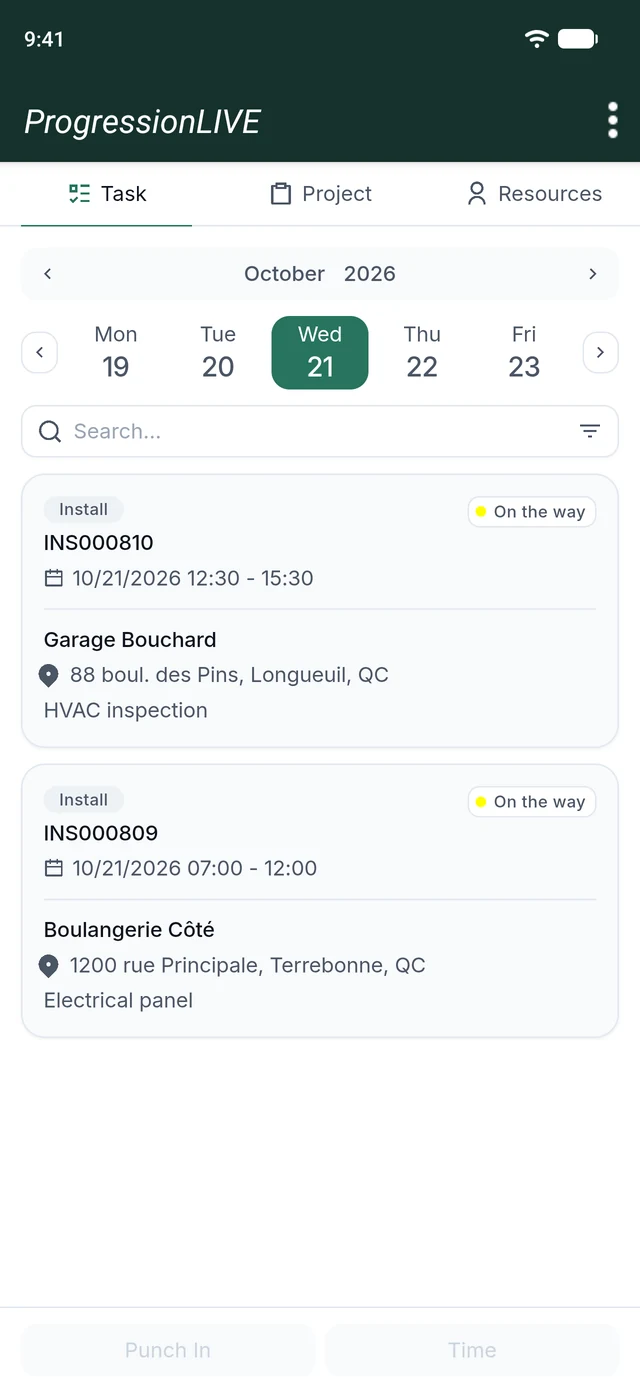
Run the job site from the job site
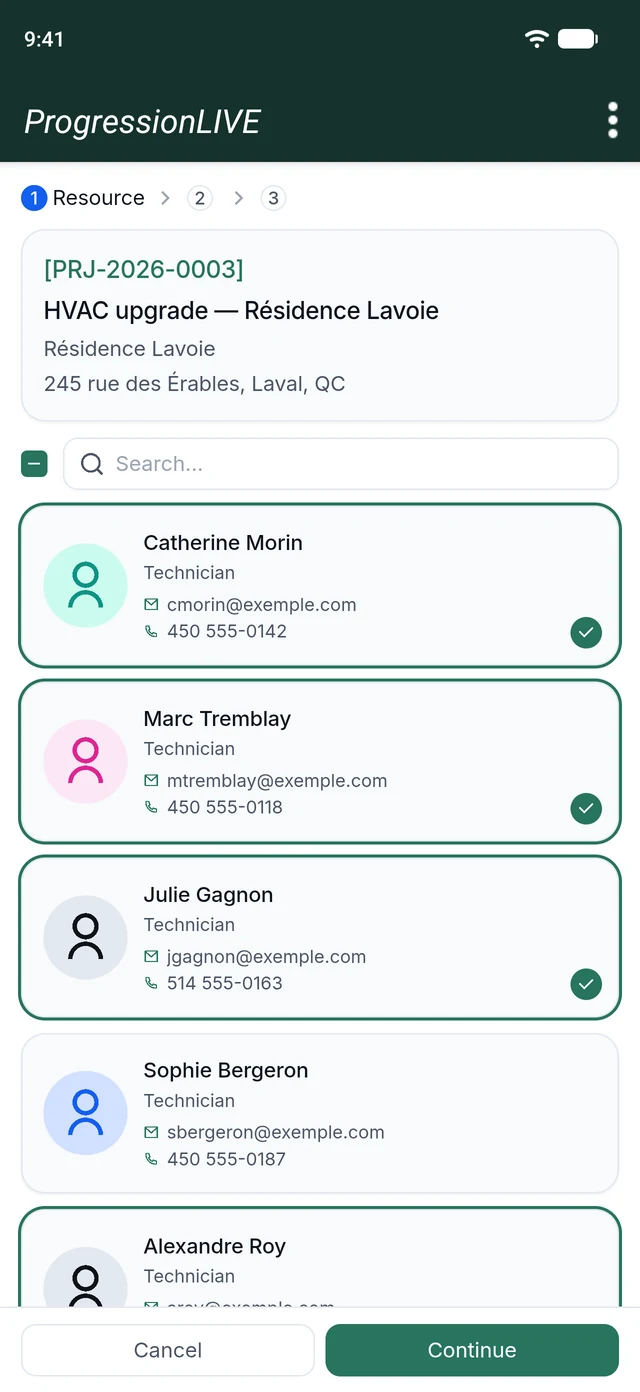
Clock in the whole crew at once
You pick a project or a task, uncheck anyone who’s absent before you start your day, and the whole crew is clocked in.
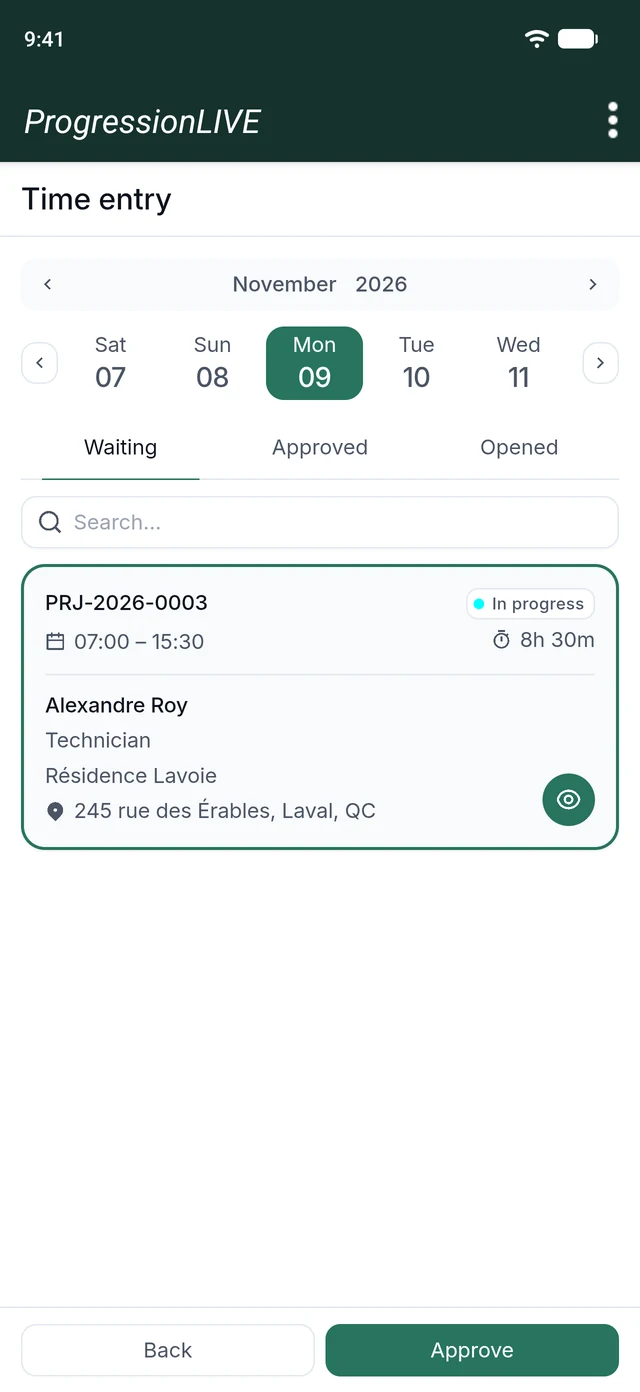
Hours approved on site
You approve time entries in bulk or one by one, without waiting to get back to the office. No more time lost on timesheets.
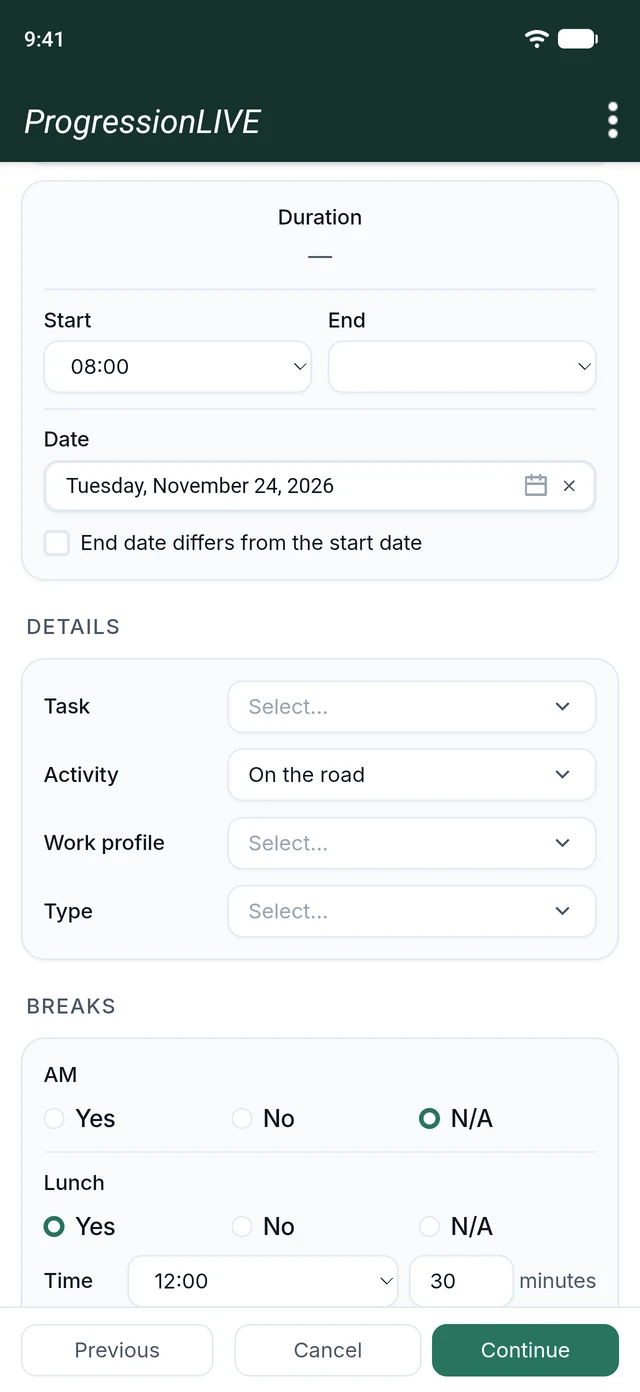
Hours that follow your CCQ setup
The crew clock-in follows your CCQ setup: start time, activity and breaks respect your rules from the start. You just check and confirm.
Know what’s left to approve
In the Time tab, entries are sorted by status: you immediately see the ones waiting for your approval.
How it works
From clock-in to approval, on the job site.
FAQ
Frequently asked questions
What is the Foreman Screen?
A screen in the mobile app where the foreman sees their team, projects and tasks, clocks in the crew and approves hours.
How do I designate a foreman?
In the project, Human resources tab, with Set as foreman.
What do I need to use it?
The Timesheet and Project management modules turned on, the “Foreman module access (mobile)” permission, and time entry approval enabled.
Can I approve several entries at once?
Yes, in bulk or one by one.
Is the Foreman Screen included in my plan?
Yes, in Pro and Premium.

