

Are your office and your field crews moving at the same pace? The ProgressionLIVE updates of November 17 are built for exactly that: four features, two for the office and two for the field, all included in the Pro and Premium plans.
Appointment Suggestion: answer "when can you come?" during the call (beta)
Your customer calls and wants to know when a tech can show up. Without a tool, your agent guesses or promises a callback. With Appointment Suggestion, your agent or dispatcher sees time slots that are actually open, based on skills, schedules and time off. One click fills in the appointment and the resource on the task.
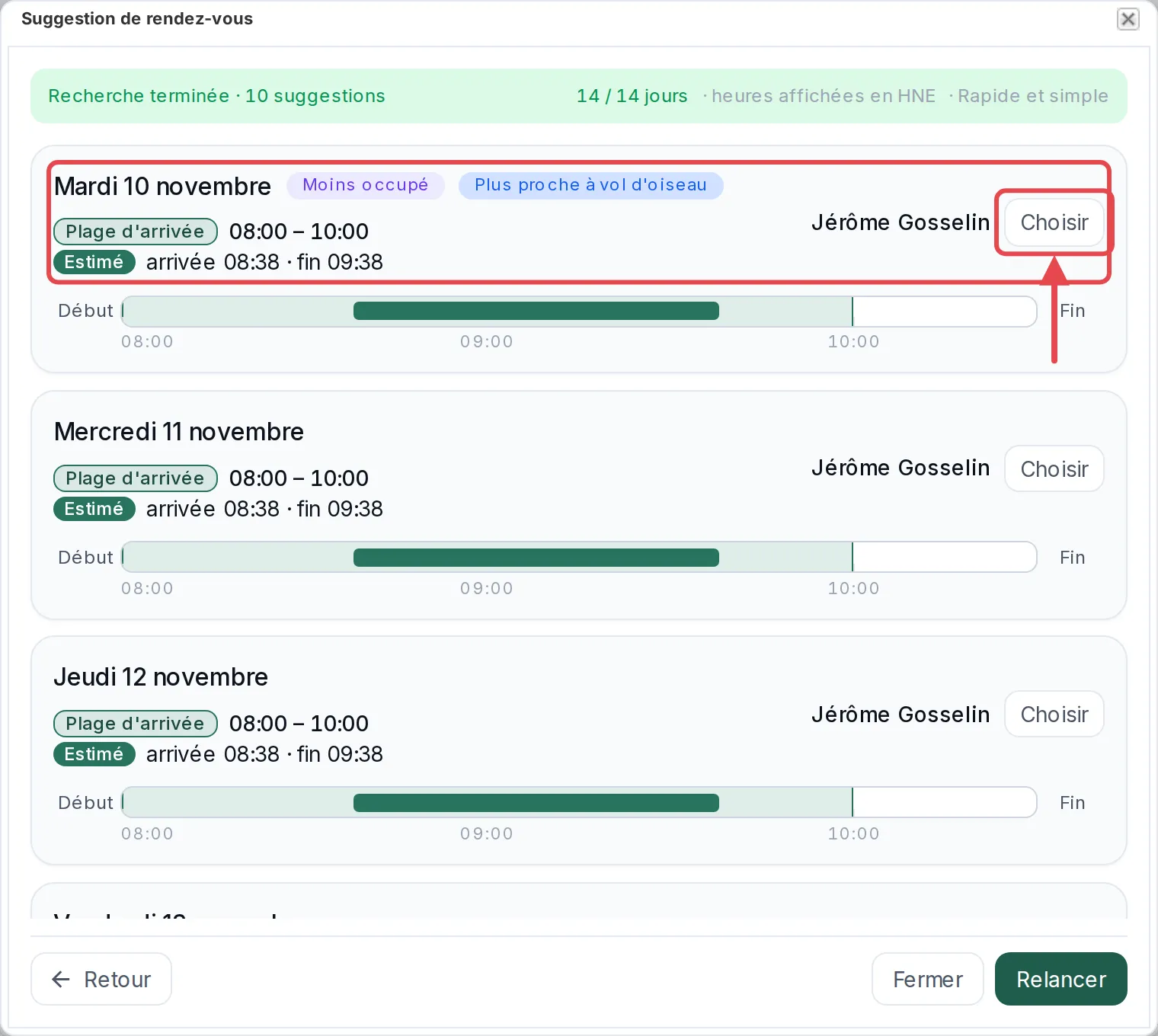
It's a tool for your agents and dispatchers, not a self-service booking page for your end customer.
Already a customer? To turn on Appointment Suggestion, write to support@progressionlive.com with your company name. We activate it with you, and you can try it this week. Not a customer yet? Book a demo.
Project Contracts and Invoicing: from contract to PDF invoice (beta)
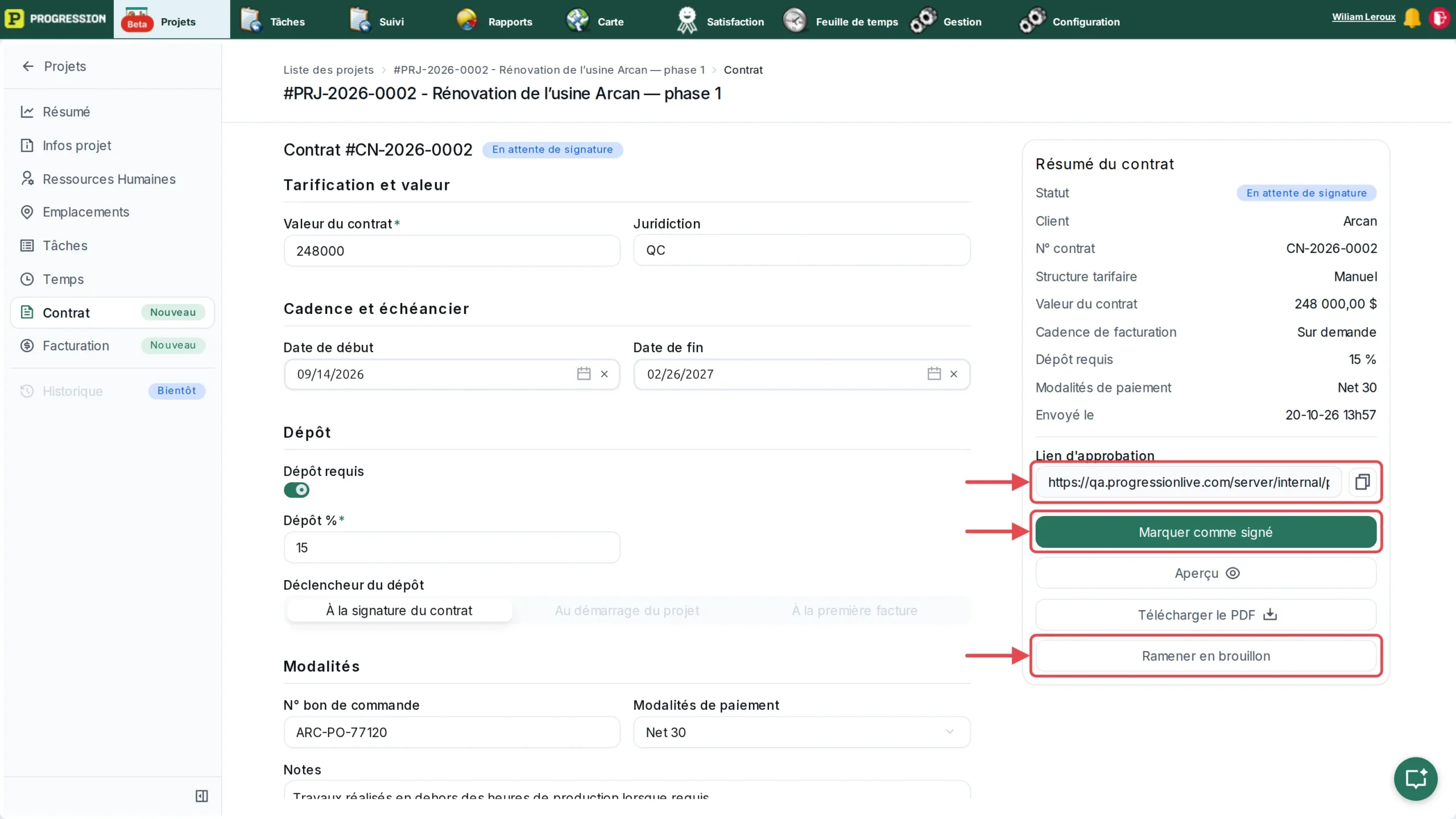
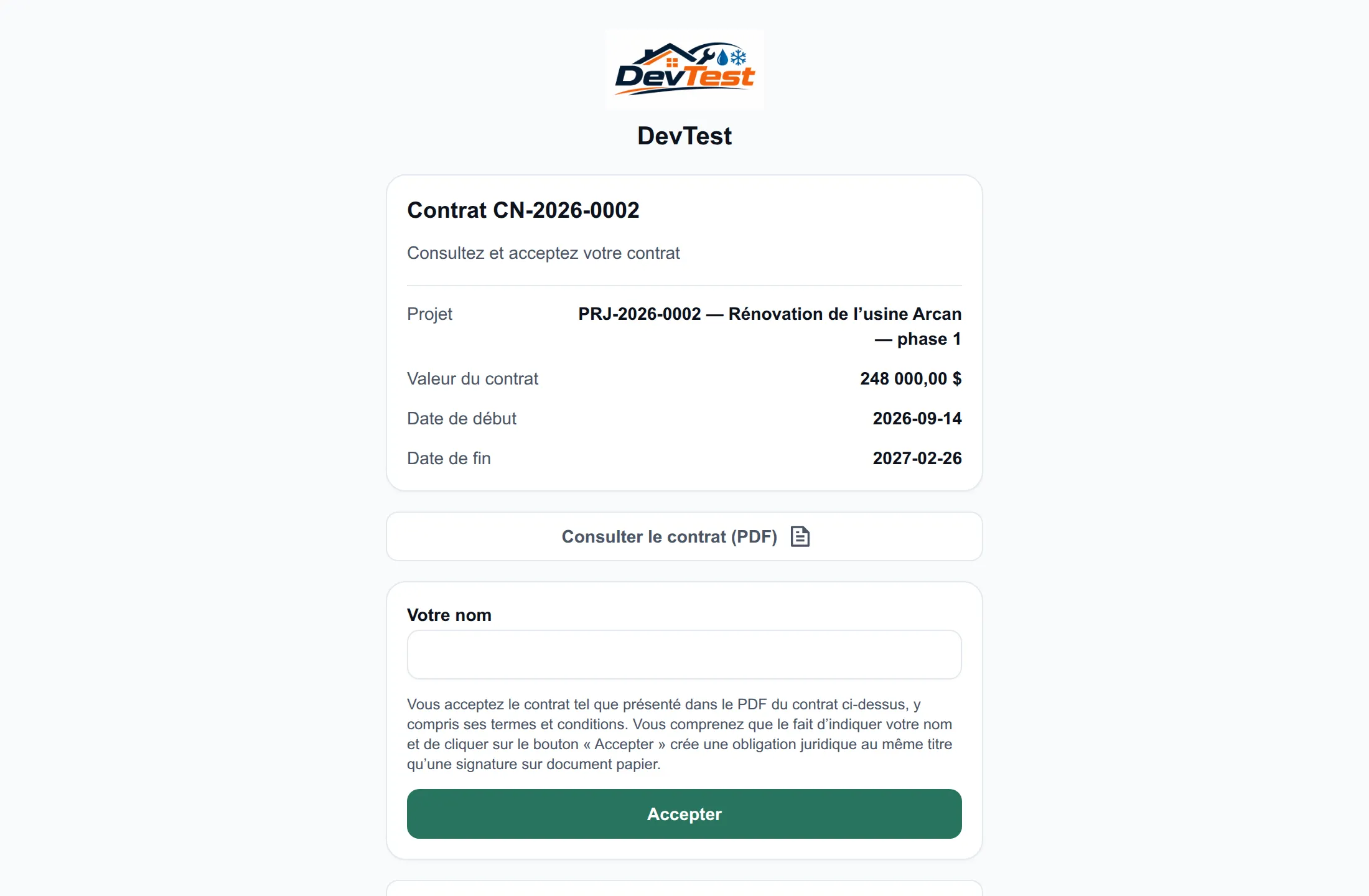
The project record now has two sections. The contract captures the value, the dates, the deposit, the purchase order and the payment terms. You copy the approval link and send it to your customer yourself. They accept by typing their name, or decline with a reason. For a paper contract, you use Mark as signed.
On the invoice side, a step-by-step wizard walks you through creating each one. The invoice stays a draft until you click Send invoice. You then record the payments you receive (Partially paid, then Paid), cancel with a reason if needed, and download the PDF.
Read the help center article: Project Management module
Mobile Dispatch: the task pool in your app
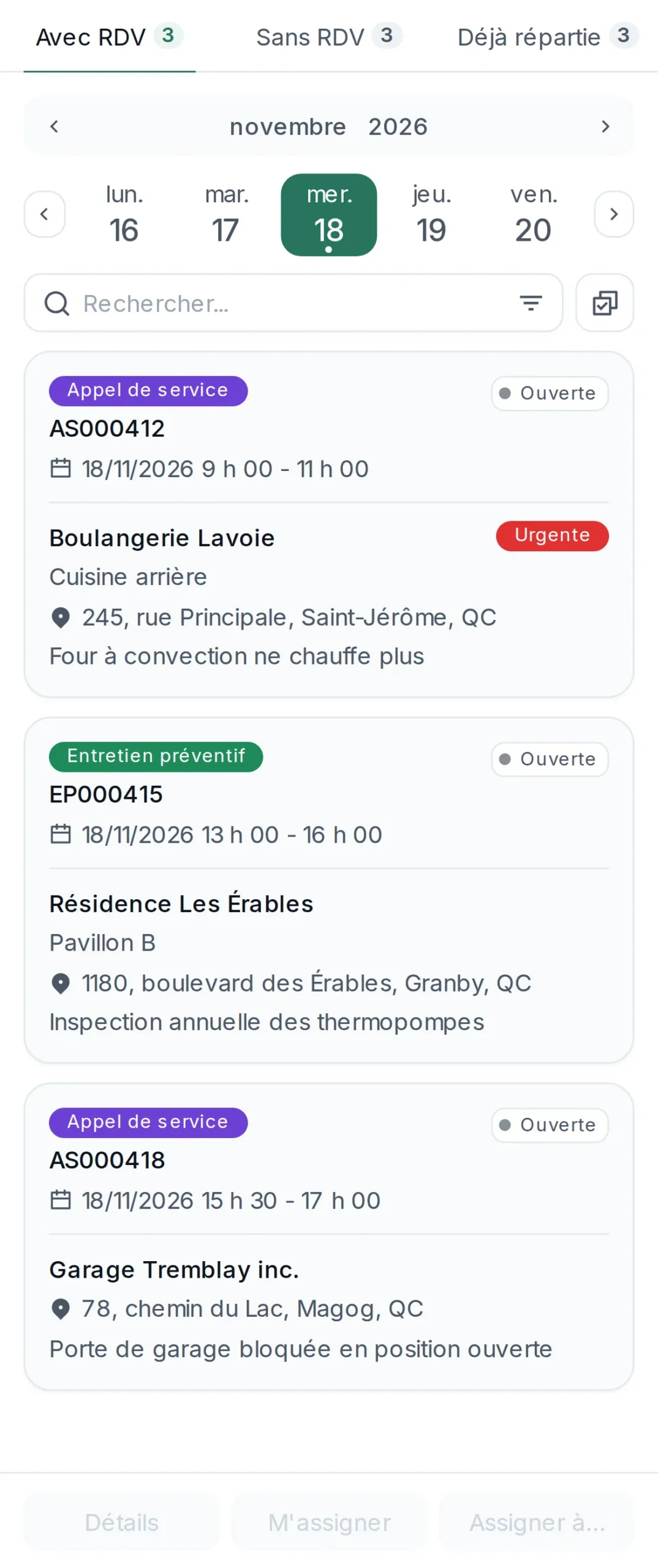
The Mobile Dispatch menu shows the tasks waiting for a resource and lets you assign them in a few taps, right from the field. A self-directed tech picks open tasks from the task pool (Self mode). A dispatcher can assign tasks to any active resource, reassign tasks that were already dispatched and manage the extra resources on a task (Dispatch mode). Access is not automatic for your other roles (see the note below).
Do this first: give your roles access. At launch, only the account's main administrator role (the original role created with the account) has access to Mobile Dispatch. Other roles don't, even one named "super admin". From that role, turn on the "Dispatch module access (mobile) - Self mode" permission (the tech assigns themselves tasks) or the "Dispatch module access (mobile) - Dispatch mode" permission (assign and reassign) for each role that needs it.
Foreman Screen: your crew, your projects and your hours
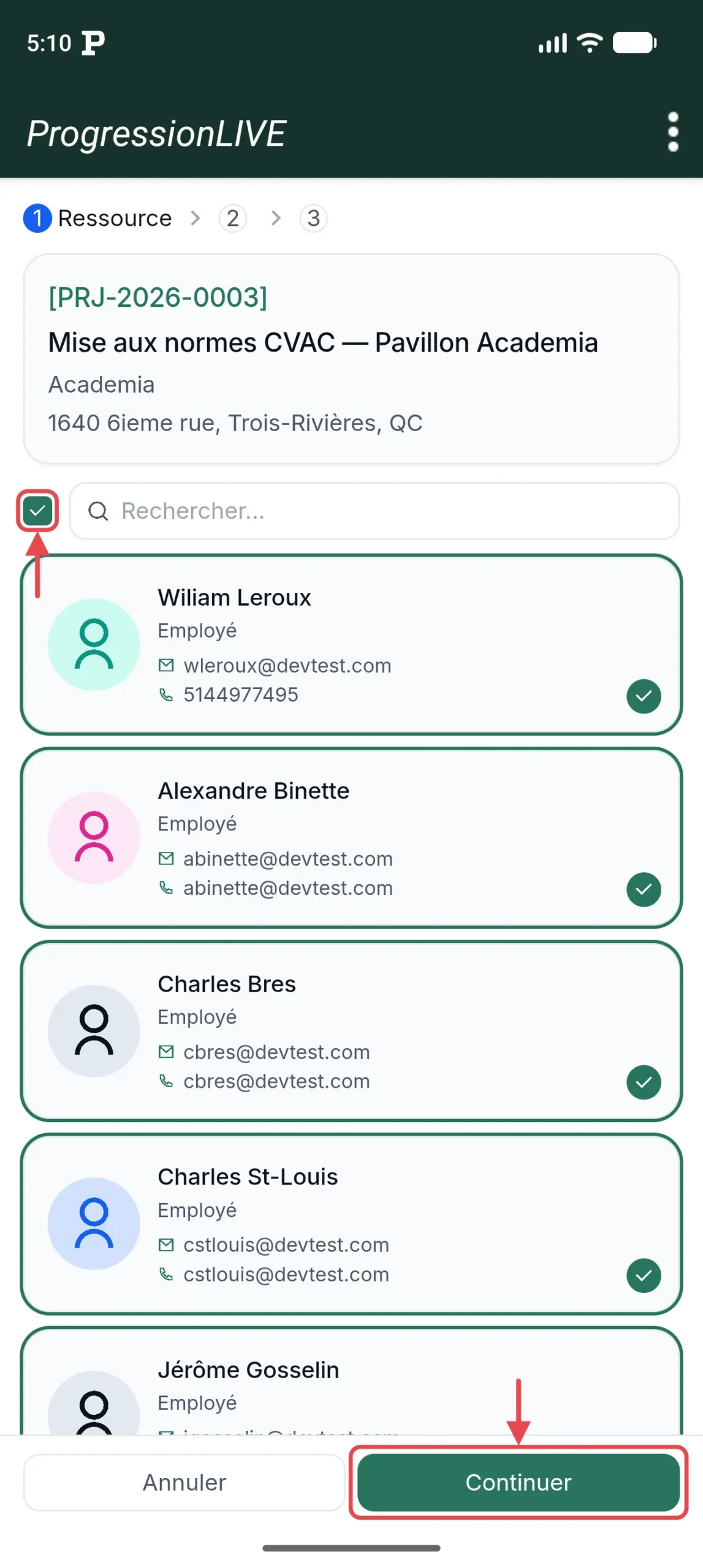
The foreman sees their crew, their projects and their tasks. They punch the whole crew in at once and approve hours in bulk, right from the job site.
In practice, you pick a project or a task, uncheck anyone absent and tap Continue. The start time, date, activity and breaks are filled in based on your CCQ setup or work profile, and the end time is optional: without it, the entry stays open. You confirm, then the Time button opens your entries, sorted into Opened, Waiting and Approved tabs, and you approve in bulk or one by one.
How to get access
All four updates are included in Pro and Premium. Here is what each one needs:
- Appointment Suggestion: contact our support team at support@progressionlive.com to ask for the module to be turned on, give the "Access appointment suggestion" permission to the roles that need it, and make sure addresses are geocoded.
- Project Contracts and Invoicing: give the "Project billing access" permission to the roles that need it. The Contract and Billing sections only show up for them.
- Mobile Dispatch: only the main administrator role has access at first. It then gives each other role the "Dispatch module access (mobile) - Self mode" or "Dispatch module access (mobile) - Dispatch mode" permission, allows at least one task type on mobile and checks the workflow. The Helper and Disponibility modules are optional.
- Foreman Screen: the Timesheet module must be active (it's included in every plan). Give the "Foreman module access (mobile)" permission. For the crew punch, the role also needs the "Timesheet section access" permission and the right to create and edit entries. Then name the foreman on the project (Human resources tab, Set as foreman) and turn on Approval of time entries in the Timesheet settings.
What's coming, and your feedback
The Appointment Suggestion optimization model and the accounting integration for invoicing are in the works. Both features stay in beta until the end of 2026, and until then we'd love your feedback: how to improve them, what's missing, and so on. You can write to us at marketing@progressionlive.com.
In short
- Appointment Suggestion (beta) offers time slots that are actually open during the call, for agents and dispatchers.
- Project Contracts and Invoicing (beta) goes from the approval link to the PDF invoice.
- Mobile Dispatch lets you assign and reassign up to 50 tasks at once, right from the field.
- The Foreman Screen brings together crew, projects, tasks, crew punch and bulk hour approval.
- All four are included in Pro and Premium, with no price change when the beta ends.
These four updates are available now, included in Pro and Premium. Questions? Write to support@progressionlive.com or book a demo.

